How to Fix AirPods That Refuse to Connect to Your iPhone
Most iPhone and AirPods pairing failures can be solved by checking battery levels, cleaning contacts, or performing a hardware reset.
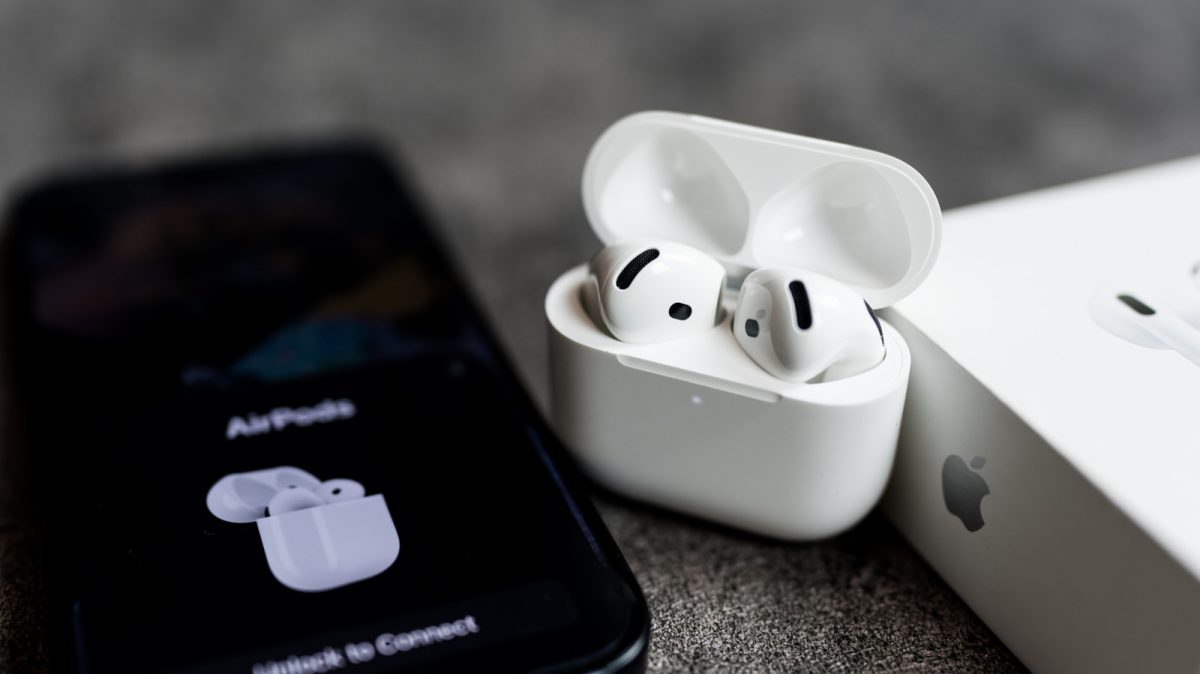
Persistent connection failures between Apple AirPods and an iPhone are almost always caused by software bugs, depleted batteries, or incorrect settings rather than permanent equipment damage.
As detailed in a troubleshooting guide by Engadget, users experiencing dropped audio or failed pairings can typically resolve these issues quickly by addressing a small set of common failure points.
Depleted power is one of the most frequent reasons earbuds stop responding. When the battery in either the earbuds or their case is entirely drained, the iPhone cannot register the accessory and will not even show an alert about low power. Furthermore, debris or earwax accumulating around the metal contact points inside the case can halt charging. Cleaning the contacts with a cotton applicator and connecting the case to power for several minutes often restores communication.
Managing System Settings and Audio Switching
Software settings on the host phone also disrupt connectivity. Users must ensure Bluetooth is active in the main system settings and verify that their earbuds appear as the selected audio destination under the media panel in Control Center. An additional complication involves automatic switching among devices tied to the same Apple Account. An incoming alert on an iPad or Mac can unexpectedly pull the audio stream away from the phone; hitting play on the mobile device normally reclaims the link.
Firmware problems can similarly prevent smooth pairing. Users should ensure their iPhone is updated through the software update section under General settings, then review the earbud build number in the accessory preferences against current versions listed on Apple's website. If an update is required, keeping the plugged-in earbuds near the phone for roughly half an hour triggers the installation automatically.
Resetting the Hardware and Seeking Replacement
When adjustments to settings fail to restore functionality, performing a full reset clears corrupted configurations. The procedure requires placing the earbuds in their case with the lid open. For fourth- and fifth-generation models as well as AirPods Pro 3, users must double-tap the case exterior until a white indicator illuminates, repeat the tap during the white flash, and tap a third time when flashing accelerates.
Older models require pressing and holding the button on the back of the case for roughly 15 seconds, while AirPods Max require holding both the noise cancellation toggle and the digital dial for the same duration. Once the reset succeeds, pairing prompts will appear on the iPhone display. If the hardware remains unresponsive after these steps, owners should contact Apple for replacement options, which are free under the standard one-year warranty or an active AppleCare+ service contract.